Are you tired of spending hours manually sorting and analyzing your data? What if you could automate those repetitive tasks and uncover insights faster with just a few lines of code?
Google Scripts for data analysis can transform the way you work with your spreadsheets, making your life easier and your results more accurate. Whether you’re new to coding or just looking for a simple way to get started, there’s a straightforward guide that can help you unlock this power quickly. Check out Learn To Code In Google Sheets by Better Sheets—a beginner-friendly course designed to teach you the basics of Google Scripts, so you can start automating your data analysis today. Keep reading to discover how Google Scripts can save you time and boost your productivity!
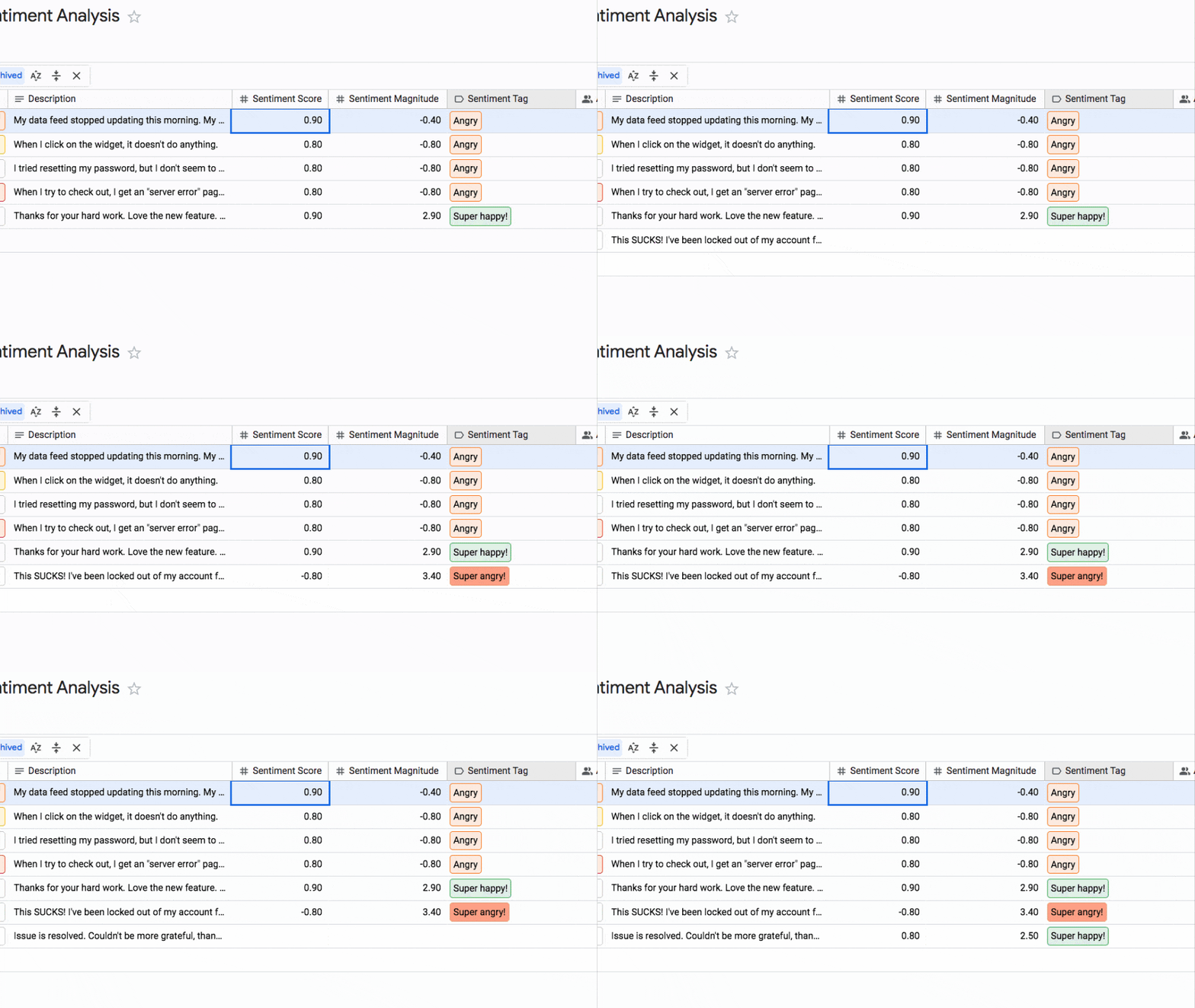
Credit: www.benlcollins.com
Introduction To Google Scripts For Data Analysis
Google Scripts offer a simple way to automate and enhance data tasks inside Google Sheets. These scripts help users analyze data faster and with less effort. They are easy to learn, especially with beginner guides like Learn To Code In Google Sheets by Better Sheets. This introduction covers what Google Scripts are, their benefits, and common ways to use them in data analysis.
What Are Google Scripts And How Do They Work?
Google Scripts are small programs written in JavaScript. They run inside Google Sheets and other Google Workspace apps. These scripts automate repetitive tasks and add new functions.
They work by accessing your spreadsheet data and performing actions like:
- Reading and writing data
- Sorting and filtering information
- Creating custom menus and dialogs
The scripts run on Google’s servers, so you do not need to install any software. You write code using the built-in script editor in Google Sheets. Then, run the scripts directly from your spreadsheet.
Why Use Google Scripts For Data Analysis?
Google Scripts save time by automating manual tasks. They help reduce errors in data handling. Scripts can perform complex calculations and data transformation quickly.
- Faster data processing: Automate repetitive steps.
- Custom solutions: Tailor tools to your needs.
- Easy integration: Work with other Google apps.
- Improve accuracy: Limit human errors in data.
They are useful for beginners and experts. Even simple scripts can improve everyday data work.
Overview Of Common Use Cases In Data Analysis
Google Scripts help with many data analysis tasks. Some common uses include:
| Use Case | Description | Example |
|---|---|---|
| Data Cleaning | Remove duplicates, fix formats, and clean data automatically. | Script to remove empty rows in a sheet. |
| Data Transformation | Convert data from one format to another. | Change dates from text to date format. |
| Custom Reports | Generate reports with specific calculations or summaries. | Create monthly sales summaries automatically. |
| Automated Alerts | Send emails or notifications based on data changes. | Alert team when inventory is low. |
| Data Integration | Pull data from other Google apps or external APIs. | Import data from Google Forms into Sheets. |
Learning to write Google Scripts can help you handle data tasks easily. The Learn To Code In Google Sheets by Better Sheets course offers a simple start for beginners.
Credit: www.youtube.com
Key Features Of Google Scripts That Enhance Data Analysis
Google Scripts provide powerful tools for handling data efficiently. They allow users to automate tasks, perform complex calculations, and manage data directly inside Google Sheets and other Google services. These features save time and reduce errors in data analysis workflows.
By leveraging Google Scripts, users can streamline their data processes, making analysis faster and more accurate. The following sections highlight the main features that make Google Scripts valuable for data analysis.
Automating Data Collection And Integration
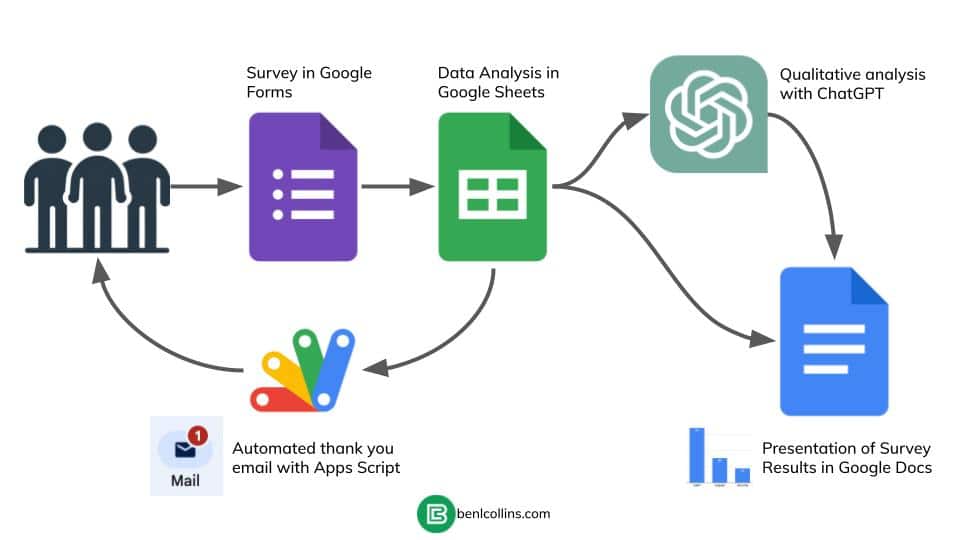
Google Scripts can automatically gather data from various sources, such as web APIs, forms, or other spreadsheets. This automation removes the need for manual data entry.
- Fetch data from external websites or databases
- Import data from Google Forms responses directly into Sheets
- Combine data from multiple Sheets into one
This feature ensures data stays updated without extra effort, improving workflow efficiency and accuracy.
Custom Functions For Advanced Calculations
Users can create custom functions tailored to specific calculation needs. These functions extend Google Sheets beyond built-in formulas.
- Perform unique calculations not available by default
- Reuse complex formulas easily across multiple sheets
- Simplify repetitive tasks with custom code
Custom functions help solve unique problems and speed up data processing.
Seamless Integration With Google Sheets And Other Google Services
Google Scripts work natively within Google Sheets and connect with other Google tools like Drive, Docs, Calendar, and Gmail.
| Service | Integration Example |
|---|---|
| Google Sheets | Automate data entry and manipulation |
| Google Drive | Manage files and folders programmatically |
| Google Calendar | Schedule events based on data changes |
| Gmail | Send automated emails with data summaries |
This deep integration makes Google Scripts a versatile tool for many data-related tasks.
Real-time Data Processing And Updates
Scripts can run automatically when data changes, providing real-time updates.
- Trigger scripts on edits or form submissions
- Update dashboards and reports instantly
- Notify users about important changes immediately
Real-time processing keeps data accurate and current without manual refreshes.
Scriptable Dashboards And Reporting
Google Scripts allow building custom dashboards and reports inside Sheets.
- Create interactive charts and summaries
- Automate report generation on schedules
- Customize the layout and data presentation
Scriptable dashboards make data easier to understand and share.
Pricing And Affordability Of Using Google Scripts
Google Scripts offers a cost-effective way to automate and analyze data within Google Sheets and other Workspace apps. Understanding the pricing and usage limits helps users manage their projects without unexpected costs. Google Scripts is part of the Google Workspace ecosystem, which provides various plans suited for different needs and budgets.
Cost Structure Of Google Workspace And Script Usage Limits
Google Workspace has multiple pricing plans, each with specific features and limits. The most common plans include:
| Plan | Monthly Cost (per user) | Google Scripts Usage Limits |
|---|---|---|
| Free (Google Account) | $0 | Up to 90 minutes of script runtime/day, 20,000 calls/day |
| Business Starter | $6 | Increased quotas on runtime and calls |
| Business Standard | $12 | Higher limits for script execution and API calls |
| Business Plus / Enterprise | $18+ | Maximum quotas and priority support |
Script usage limits include daily runtime, execution time per script, and API calls. These limits help prevent overuse and keep costs manageable.
Free Vs Paid Tiers: What You Get And When To Upgrade
The free tier is ideal for simple automation and small projects. It offers:
- Basic access to Google Scripts
- Limited daily runtime and calls
- Access to core Google Workspace apps
Paid tiers unlock:
- Higher script execution limits
- More storage and collaboration tools
- Priority support and security features
Upgrade when your scripts need more runtime or your team requires advanced tools.
Cost Benefits Compared To Traditional Data Analysis Tools
Google Scripts is more affordable than many traditional data analysis tools. Key benefits include:
- No extra software costs beyond Google Workspace subscription
- Easy integration with Google Sheets and other apps
- Automation reduces manual work, saving time and money
Traditional tools often require expensive licenses and complex setups. Google Scripts provides simple, scalable solutions for small and medium projects.
Pros And Cons Of Google Scripts For Data Analysis
Google Scripts offer a powerful way to enhance data analysis within Google Sheets and other Google Workspace apps. They allow users to automate tasks, customize workflows, and handle data flexibly. Yet, like any tool, Google Scripts come with both benefits and drawbacks. Understanding these helps users decide if it fits their data projects.
Advantages: Flexibility, Accessibility, And Automation
Google Scripts provide several key advantages:
- Flexibility: Scripts can be tailored to specific needs, from simple calculations to complex data manipulations.
- Accessibility: Being cloud-based, scripts run anywhere with internet access. No software installation needed.
- Automation: Automate repetitive tasks like data cleaning, report generation, and email notifications with ease.
Users can extend Google Sheets beyond its standard functions by writing custom code. This makes data analysis faster and more efficient.
Limitations: Performance Constraints And Learning Curve
Google Scripts also have some limitations:
| Limitation | Description |
|---|---|
| Performance Constraints | Scripts may slow down on large datasets or complex operations due to Google’s execution quotas and time limits. |
| Learning Curve | Beginners need time to understand JavaScript basics and Google Scripts syntax. |
These factors can affect how quickly users can build effective scripts and handle big data tasks.
Real-world User Experiences And Common Challenges
Many users find Google Scripts helpful but face common challenges such as:
- Debugging errors without much programming background.
- Limits on script runtime causing interruptions in long processes.
- Handling data security and permissions correctly.
Despite hurdles, users appreciate the ability to automate workflows and save time. Basic guides like Learn To Code In Google Sheets by Better Sheets help beginners start scripting effectively.
Ideal Users And Scenarios For Google Scripts In Data Analysis
Google Scripts offers a powerful way to automate and enhance data analysis tasks within Google Sheets. It suits a variety of users and fits specific scenarios where automation saves time and reduces errors. Understanding who benefits most and when to use these scripts helps maximize efficiency.
Who Benefits Most: Small Businesses, Analysts, And Educators
Small businesses gain from Google Scripts by automating routine tasks without needing expensive software. Scripts help streamline workflows, saving time and effort.
Data analysts use scripts to handle repetitive calculations and data transformations. This lets them focus on deeper insights rather than manual work.
Educators find Google Scripts useful for creating interactive lessons and automating grading or attendance tracking. It simplifies managing large data sets related to students.
- Small Businesses: Automate invoices, track sales, and generate reports.
- Analysts: Clean data, automate repetitive analysis, and schedule reports.
- Educators: Manage student data, automate grading, and generate alerts.
Best Use Cases: Repetitive Reporting, Data Cleaning, And Custom Alerts
Repetitive reporting benefits greatly from Google Scripts. Scripts can generate and email reports automatically on set schedules.
Data cleaning is another strong use case. Scripts can remove duplicates, fix formatting, and standardize data quickly.
Custom alerts keep users informed about key changes or anomalies in data. Scripts send notifications based on specific conditions.
| Use Case | Description | Example |
|---|---|---|
| Repetitive Reporting | Automate report generation and distribution | Monthly sales summary emailed to team |
| Data Cleaning | Remove errors and format data consistently | Eliminate duplicate entries in customer lists |
| Custom Alerts | Notify users about important data changes | Alert when inventory stock falls below threshold |
When To Consider Alternative Or Complementary Tools
Google Scripts works well for many tasks but has limits. Large datasets or complex models may slow down scripts.
Consider other tools when:
- Handling very large data volumes beyond Google Sheets limits.
- Needing advanced analytics like machine learning.
- Requiring real-time data processing at high speed.
Complement Google Scripts with tools like Python, R, or dedicated BI software for heavy tasks.
Use Google Scripts as a starting point for automation. It offers a simple, low-cost way to improve data workflows.
Credit: pulse.appsscript.info
Getting Started: Tips And Resources For Using Google Scripts Effectively
Google Scripts offers a simple way to automate tasks and analyze data in Google Sheets. Starting with Google Scripts can seem tricky, but the right tips and resources ease the process. Learning the basics, exploring tutorials, and following best practices help you build useful scripts. This section guides you through setting up, finding learning materials, and managing your scripts for smooth data analysis.
Basic Setup And Writing Your First Script
Begin by opening a Google Sheet and selecting Extensions > Apps Script. This opens the script editor, where you write your code.
Start with a simple script to see how it works. For example:
function myFirstScript() { SpreadsheetApp.getActiveSpreadsheet().toast('Hello, Google Scripts!'); }This script shows a popup message in your sheet. Save your script, then run it by clicking the play icon.
Make sure you grant necessary permissions when prompted. This setup builds confidence and familiarity with the environment.
Learning Resources: Tutorials, Forums, And Templates
- Tutorials: Use free tutorials on Google’s official documentation and YouTube channels. They show step-by-step guides.
- Forums: Join forums like Stack Overflow and Google Apps Script Community. Ask questions and learn from others’ experiences.
- Templates: Explore ready-made script templates in the Google Workspace Marketplace. Customize them to fit your needs.
For beginners, Learn To Code In Google Sheets by Better Sheets offers a clear introduction. It covers basics enough to get started with confidence.
Best Practices For Maintaining And Scaling Your Scripts
Keep your code clean and organized. Use comments to explain what each part does. This helps when you revisit scripts later.
Test your scripts regularly to catch errors early. Use Logger.log() to debug and monitor script actions.
Plan for growth by:
- Breaking large tasks into smaller functions
- Using consistent naming conventions
- Backing up your scripts in a separate document
Limit the use of complex loops or heavy calculations to avoid slowing down your sheets. Optimize code for efficiency.
Frequently Asked Questions
What Are Google Scripts For Data Analysis?
Google Scripts are JavaScript-based tools within Google Workspace. They automate data tasks, enhance analysis, and customize spreadsheet functions efficiently.
How Can Google Scripts Automate Data Processing?
Google Scripts can automatically clean, sort, and transform data. This saves time and reduces human error in repetitive data tasks.
Are Google Scripts Easy For Beginners To Learn?
Yes, Google Scripts use simple JavaScript syntax. Beginners can start with basic scripts and gradually explore advanced data analysis features.
Can Google Scripts Integrate With Other Google Tools?
Google Scripts seamlessly connect with Google Sheets, Docs, Drive, and Gmail. This integration streamlines data workflows and reporting processes.
Conclusion
Google Scripts help simplify data analysis tasks quickly. They save time and reduce errors in spreadsheets. Anyone can learn basic scripting with simple guides. Scripts automate repetitive work, letting you focus on insights. For beginners, a clear starting point matters most. Check out Learn To Code In Google Sheets by Better Sheets for easy lessons. This guide teaches just enough to begin scripting confidently. Start small, practice often, and watch your skills grow. Data analysis becomes easier with these handy tools. Give Google Scripts a try and see the difference.